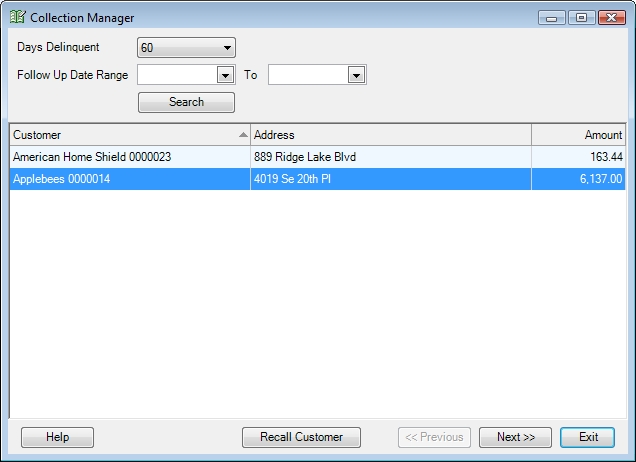
The Collection Manager is a valuable tool that will help you quickly see the customers that owe you money and track your collection efforts. Use the fields on this screen to select all customers that fall in a certain delinquency range or those that you need to follow up with. Click the Search button to display a list of the customers that meet that criteria. This list can be sorted by clicking any of the column headers so you can choose to sort the customers alphabetically or by the amount they owe.
To follow up with any of these customers or view the previous collection efforts, highlight the customer and click Next to display the detail screen.
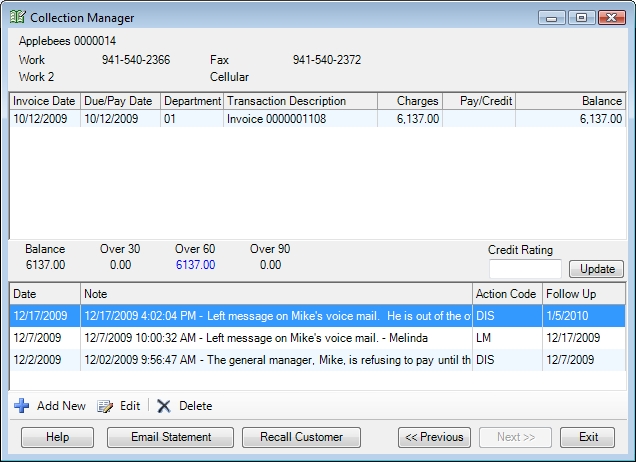
The customer's phone numbers for their main billing address will appear at the top of the screen so that you can call them.
If you need more detail about any invoice simply double click it and it will be recalled on the Sales Invoicing screen. This screen will stay open when you do this so you can drill down into an invoice then return right back to this screen when you're done.
Likewise, you can double click any of the previous collection records at the bottom of the screen to see what has been done in the past to collect from this customer.
To send a statement directly to the customer just click the Email Statement button. You can also send a regular letter to the customer by clicking the Recall Customer button and going to the Locations or Documents tab. See this help topic for more information on how to do this.
Regardless of how you end up contacting the customer use the Add New button to record your collection efforts and set follow up dates if necessary. A collection action code can be added to the records to quickly record what actions you took and notes can be entered to show more detail if necessary.
If the collection efforts don't result in a satisfactory outcome you can modify the customer's credit rating with your company by entering a new value in the Credit Rating field and clicking Update.
Once you have finished with the customer, click the Previous button to return to the first screen where you can select another customer to collect from. Repeat this process until you have collected (hopefully) from everyone on the list.
Suggestions:
 Collection Record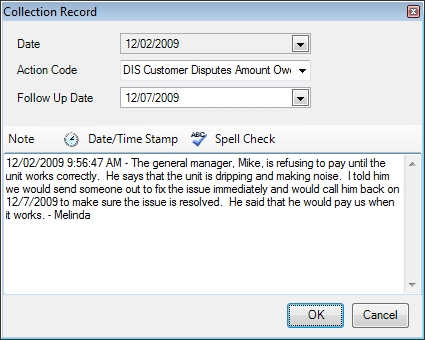
 How do I get to this screen?
 Related Topics